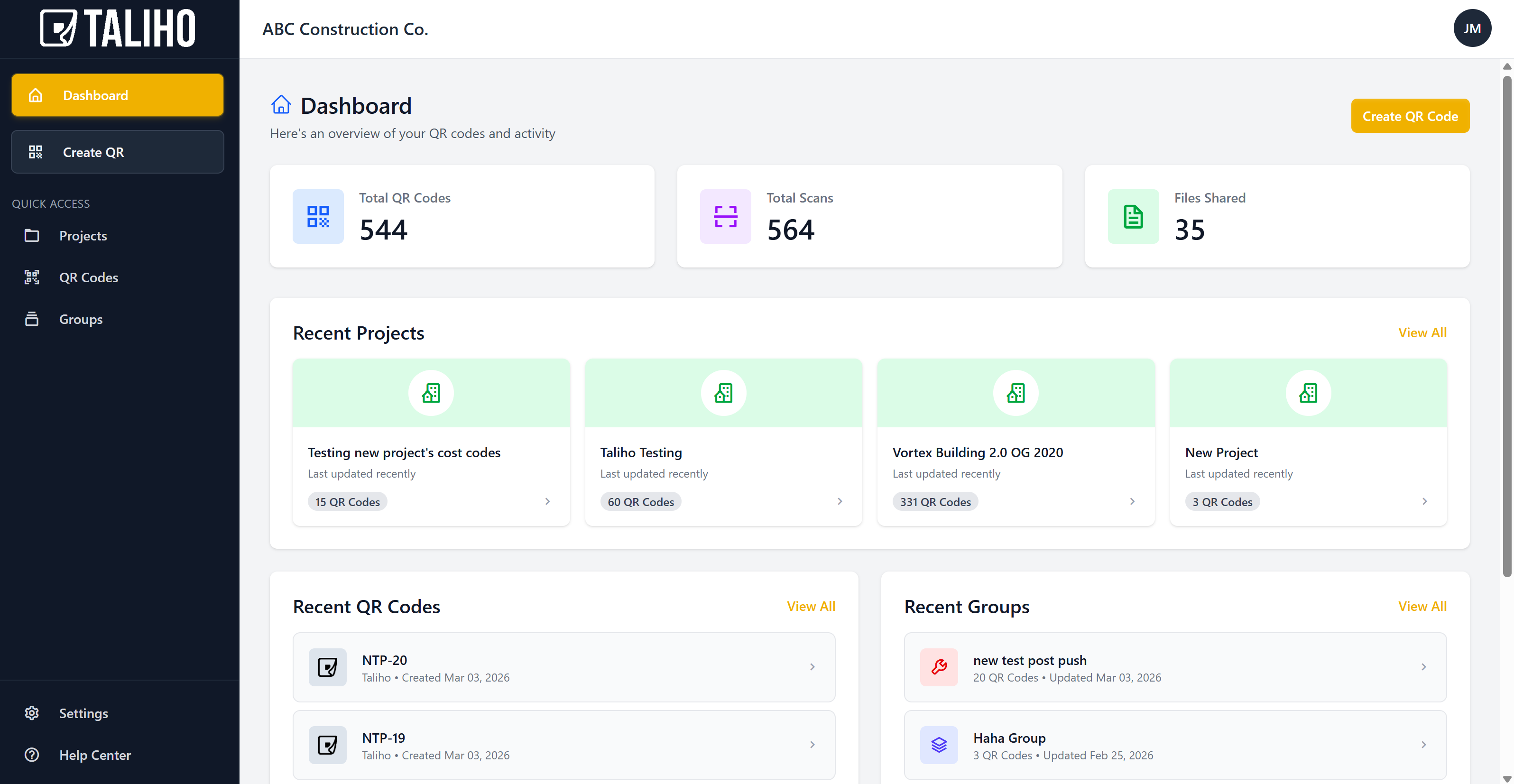
Use this guide when you have just installed Taliho from the Procore Marketplace and Procore sends you to the standalone Taliho web app to finish setup. This is the web-app path, not the embedded Procore app path.
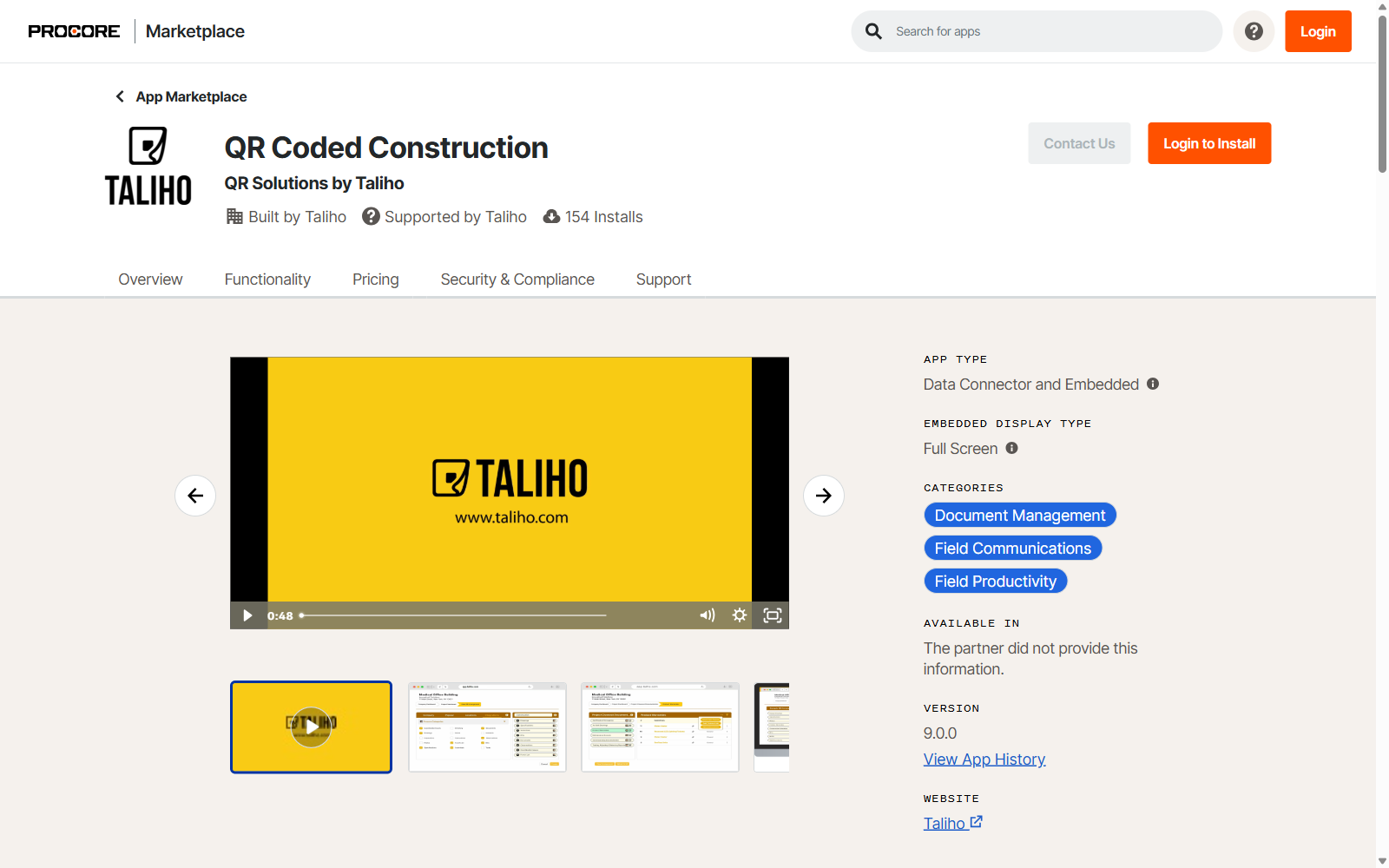
Step 1: Install Taliho from the Procore Marketplace
Go to QR Coded Construction on the Procore Marketplace.
If Procore asks you to sign in first, do that, then use Login to Install to
finish the install in the Procore account that should use Taliho.
Step 2: Create your Taliho account with Sign Up with Procore
After the Marketplace install, go to the Taliho signup page.
Click Sign Up with Procore and complete the Procore OAuth flow in the same
browser session. For this setup path, do not use the manual email signup form.

Step 3: Start using Taliho with your Procore-connected account
Once the Procore signup flow finishes, your setup is complete. Open Taliho and use it normally. The Procore connection adds the Procore-backed data available to your account.