The best Taliho workflow is not the one with the most QR codes. It is the one that lets the right person scan once and get exactly what they need. Your first field-ready workflow should be easy to post, easy to trust, and easy to maintain.
Choose the right workflow type
Use this simple rule:
- Use a Quick Code when one code should lead to one destination or one small bundle of content.
- Use a QR arrangement when several related codes belong together under one project workflow.
- Use equipment codes when you need repeatable physical tags across many assets.
- Use drawing codes when Procore drawings need direct, sheet-specific access.
Build around a real field moment
Before creating anything, answer one question: what is the person scanning trying to accomplish?
Good examples include:
- open the latest drawing for a room or area
- pull up equipment information during startup or service
- access current Procore documents without walking back to the trailer
- reach a manufacturer link, spare-parts page, or inspection reference
If you cannot describe the scan moment clearly, the workflow is probably too broad.
Start with one project and one naming standard
Keep the first workflow inside a single project. Then name codes the way the field will recognize them on paper, on a label, or on a wall.
Examples of stronger labels:
AHU-03 Startup PackageLevel 2 Corridor DrawingsConcrete Pour Daily LogsRoof RTU Warranty + Service
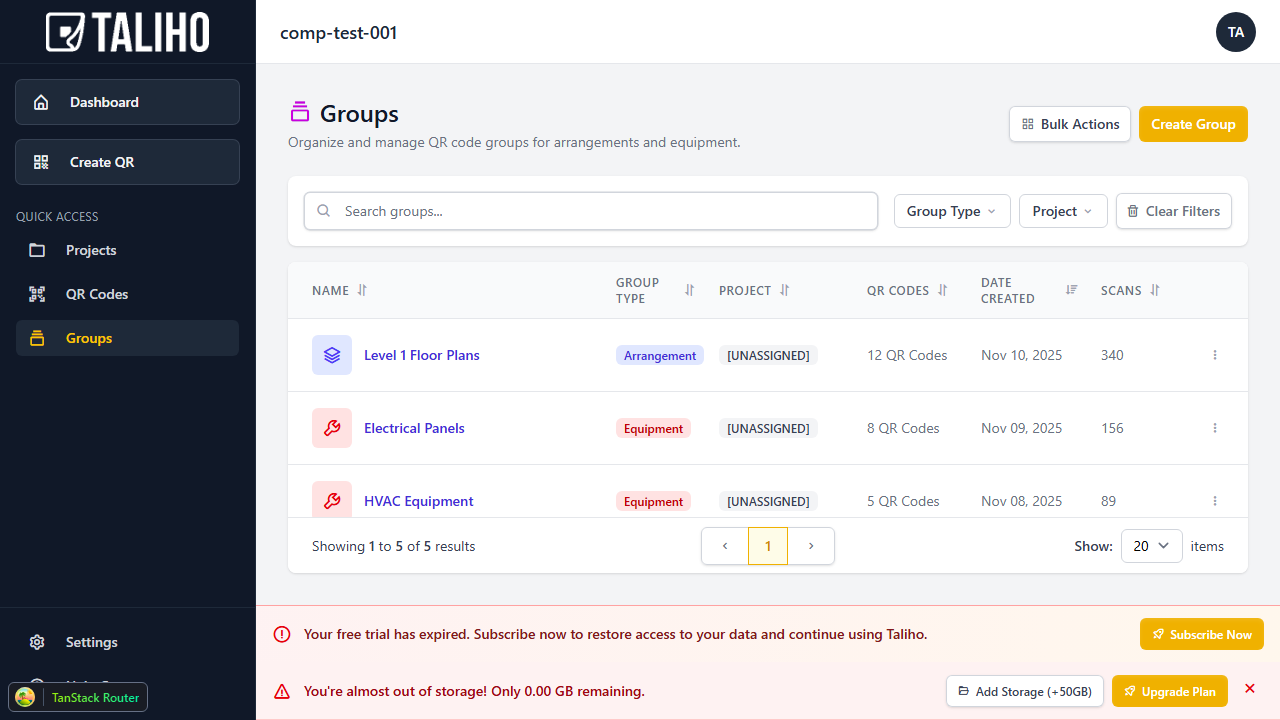
Use groupings when the field needs choices
Arrangements are useful when one posted location should give people access to multiple related codes. That might mean:
- one area board with several discipline references
- one handoff package with warranty, startup, and maintenance links
- one trade workflow with forms, drawings, and supporting documents grouped together
Make the destination easy to maintain
A field-ready workflow should stay current without requiring you to reprint everything every time information changes.
That means:
- point to live Procore tools when the source changes frequently
- use custom links when the right destination already lives elsewhere
- upload directly to Taliho when you need tighter control over the file stored behind the code
See Create Quick Codes That Stay Useful in the Field for the setup details.
Print for the environment, not just the screen
Your workflow is not complete when the code is created. It is complete when it is printed clearly, posted correctly, and scannable in the place it will be used.
- Choose a print format that matches the surface: label, sticker, or letter sheet.
- Use the project or group name in the header when it helps people orient quickly.
- Test one printed sample on a real phone before printing a full batch.
- Post the code where the work decision happens, not just where it was easy to tape it up.
A good first workflow to copy
One of the strongest starter workflows is a Quick Code for a live Procore tool plus one printed posting location. It is simple to explain, easy to scan, and clearly valuable when drawings, forms, or documents change often.
From there, expand into arrangements, equipment tags, or drawing-specific codes as the team gets comfortable.
For the next step, read Share Live Project Information with Taliho.