Quick Codes are the fastest way to publish one scannable destination without building a larger grouped structure first. They are ideal when one code should lead to one clear answer.
When a Quick Code is the right choice
Use a Quick Code when:
- One label needs one destination.
- You are piloting a workflow before building a larger arrangement.
- The field only needs one scan choice instead of a grouped menu of codes.
- You want to share a live Procore tool or a trusted outside link quickly.
Start inside the correct project
Choose the project first. That keeps naming, print outputs, and future maintenance tied to the right job instead of leaving the code floating without context.
Then open the Quick Codes area and create a new code.
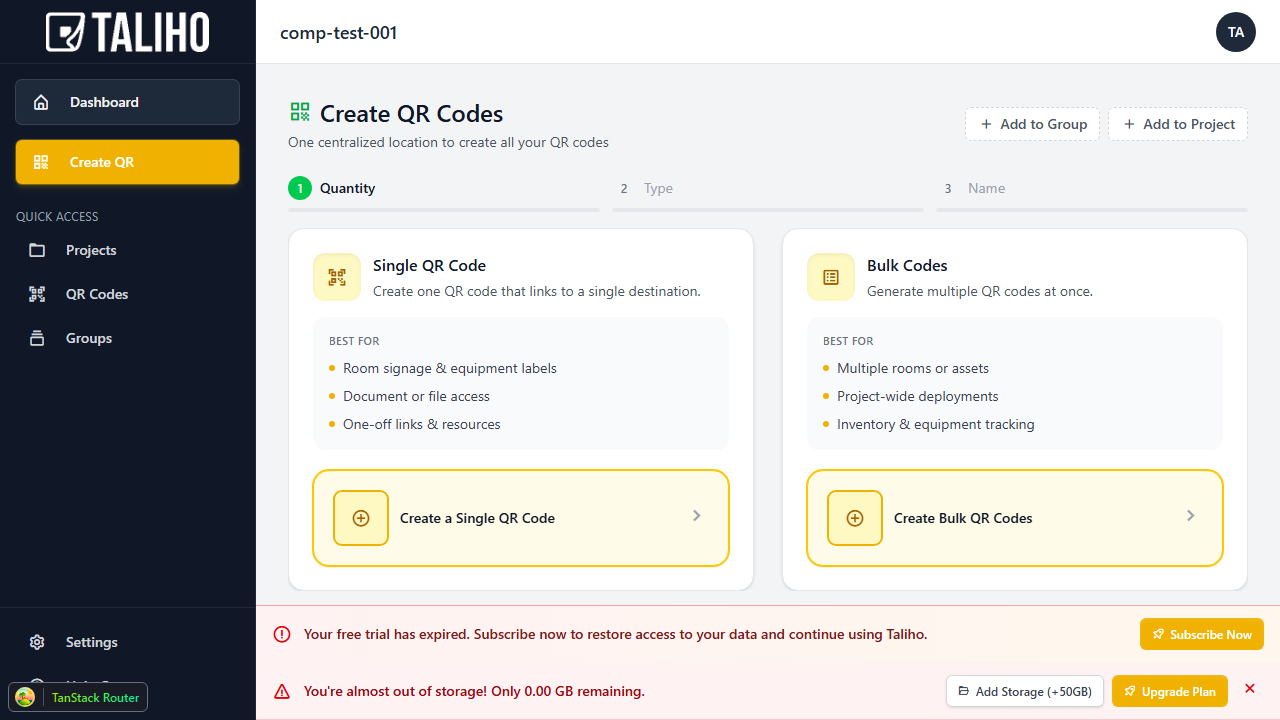
Pick the right Quick Code type
Most teams will choose from three common paths:
Taliho QR Code
Use this when you want the code to point to content managed inside Taliho. This is a good fit when you need local control over uploads, links, or the set of information behind the code.
Custom URL
Use this when the best destination already lives somewhere else, such as a cloud folder, product page, or manufacturer resource.
Procore QR Code
Use this when the field should scan directly into live project data coming from Procore.
Name the code for the scan moment
The code name should make sense where the code will be posted, not just in the app. Good names explain purpose immediately:
Roof Access Safety PlanLevel 1 DocumentsBoiler-02 StartupDaily Logs
Finish by testing the destination
After the code is created, confirm the scan result on a real phone. Make sure:
- The label is easy to understand.
- The destination opens cleanly on mobile.
- The linked information is current.
- The code belongs in a single post location instead of a larger arrangement.
If the workflow needs several related codes instead of one, move next to Create QR Arrangements for Multi-Step Jobsite Access.