A QR arrangement is useful when one workflow needs multiple clearly separated QR codes under the same project structure. Instead of posting several unrelated single codes, you create a grouped system people can understand at a glance.
Use arrangements for grouped access
An arrangement is a better fit than a single Quick Code when:
- Several codes support one area, room, or workflow.
- Users need separate scan options instead of one mixed destination.
- You want a physical posting location to act like a small menu of project information.
Build the arrangement inside the project that owns it
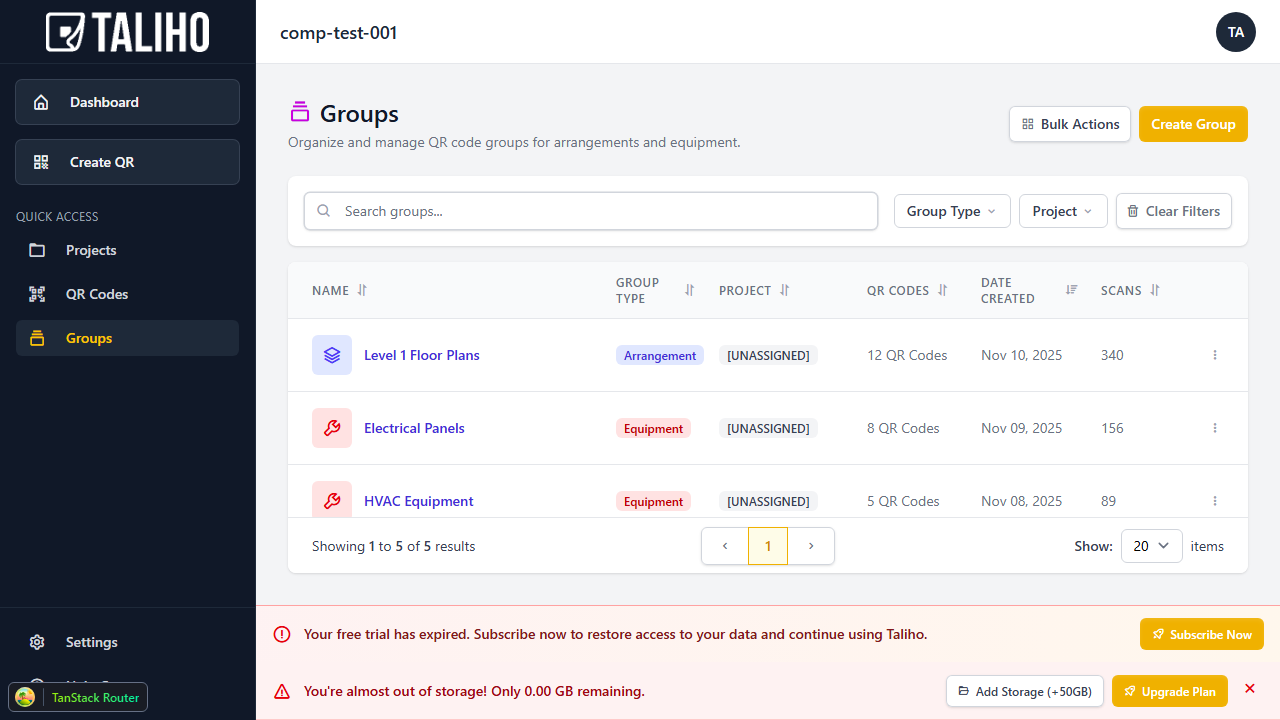
Start from the correct project, then open the grouping or arrangement area and create the new set. Keep the arrangement name specific enough that someone in the field can tell what it is for.
Examples:
Level 2 Finish PackageMEP Room StartupOwner Turnover LinksLobby Trade Coordination
Choose categories that match how the team works
Good arrangement categories usually follow one of these patterns:
- by area or location
- by discipline or trade
- by equipment or system
- by document type or workflow stage
Add the right amount of structure
A strong arrangement is organized, but not overloaded. Each code should earn its place.
- Group codes that belong in the same physical or process context.
- Use consistent naming across the whole arrangement.
- Leave out codes that do not support a clear decision or action.
- Expand the arrangement only when the added option saves time for the field.
Think about the posting location before printing
If the arrangement will live on a wall, door, board, or room entry, lay it out for that environment. Ask whether the person scanning will know which option to choose in a few seconds.
When you are ready to expand an existing setup, use Add a QR Code to an Existing Arrangement.