The company dashboard is the place to orient yourself before you drill into a project. It helps you understand what is active, what changed recently, and where to go next without bouncing through multiple screens.
What the dashboard is for
Use the dashboard to:
- Review recent projects and overall activity.
- Jump into the project you need to update next.
- See high-level counts for QR codes, scans, and shared files.
- Navigate into settings when company-wide changes are needed.
Start with the project list
Projects are the main organizing layer in Taliho. Before creating anything new, look at your current list and confirm whether the work belongs in an existing project.
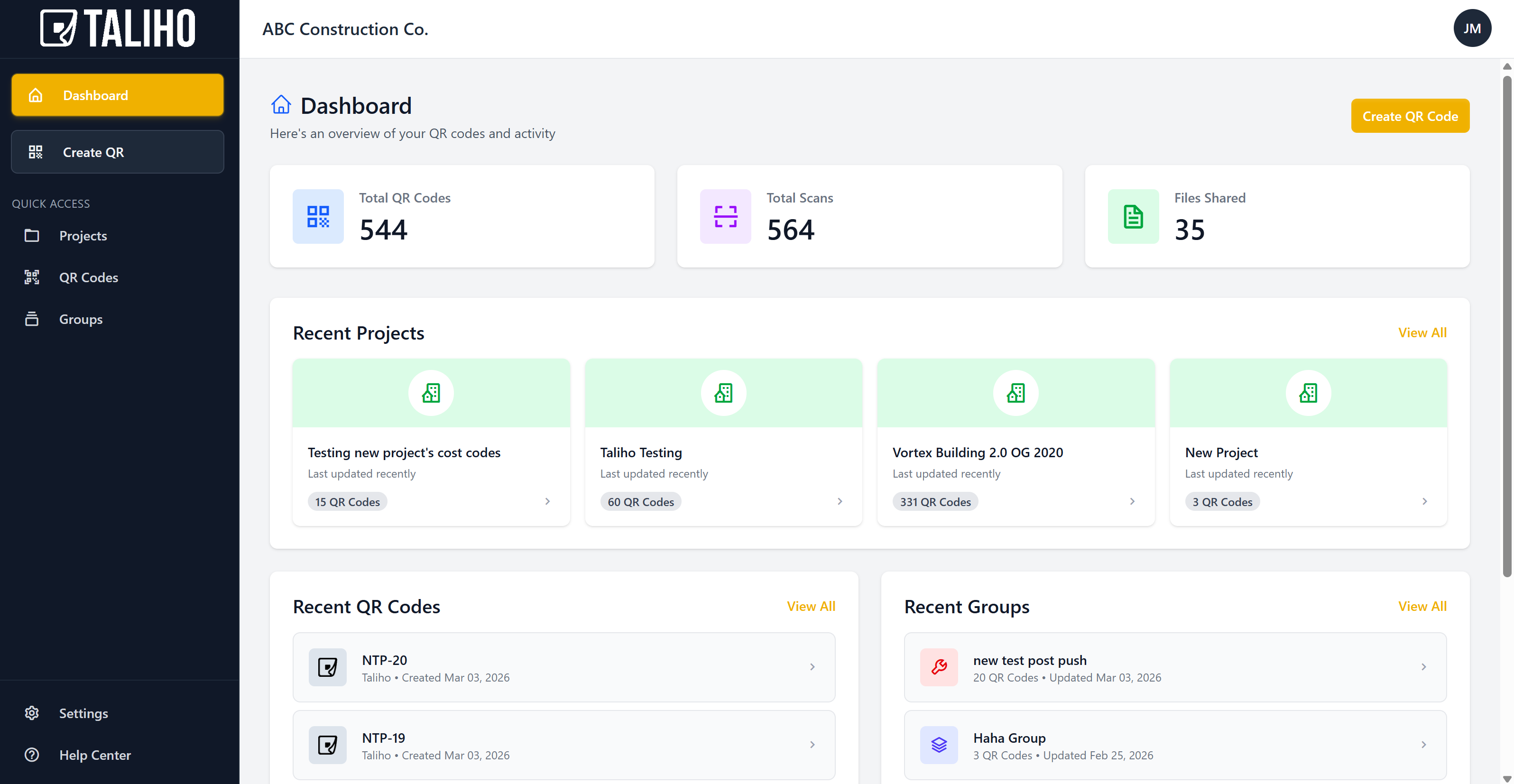
Use the dashboard as a daily check-in point
A strong habit is to treat the dashboard like a morning board:
- confirm which project needs attention today
- look for recent QR or file activity
- decide whether the next task is a project edit, a new QR workflow, or a settings update
Know when to leave the dashboard
Stay on the dashboard when you need orientation. Leave it when you need execution.
- Go into a project when you are building or editing QR workflows.
- Go into settings when you are changing company-wide information.
- Go into a specific code or group when the work is focused on one item.
Keep the dashboard useful
The dashboard becomes easier to trust when your account stays organized:
Maintenance habits
- Archive projects that are no longer active.
- Use clear project names that crews and office staff both recognize.
- Keep company info current so print outputs stay accurate.
- Standardize the first workflows you create inside each new project.
If you are just getting set up, continue with Your First Week in Taliho.